
- Revit
- Formwork
- Revit Plugin
- Tutorial
- BIM Automation
How to Calculate Formwork Area in Revit | BIMStudio
Step-by-step tutorial: calculate formwork area for concrete beams, columns, slabs, and walls in Revit with the BIMStudio Formwork plugin. Save hours on every project.
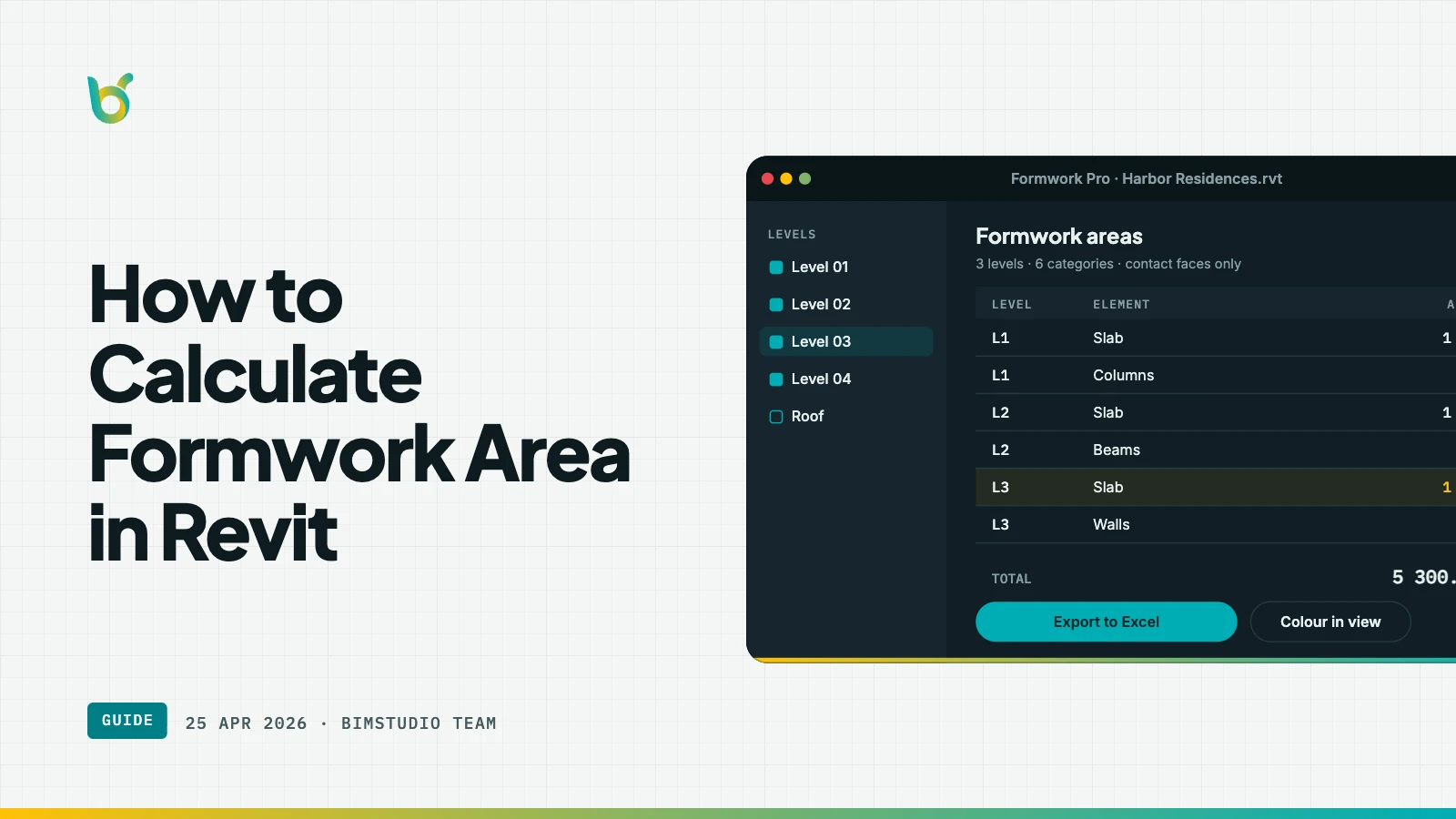
Calculating formwork area by hand is one of the most tedious tasks in structural BIM work. Engineers and quantity surveyors routinely spend hours picking through Revit's built-in parameters — only to find that the software reports total surface area, not the specific faces where formwork panels will actually be placed. BIMStudio's Formwork plugin solves this problem directly inside Revit, giving you geometry-derived formwork areas written back to model parameters in minutes.
This tutorial walks you through every step of the plugin workflow, from installation to reading results in a schedule.
Prerequisites
Before you begin, make sure you have:
- Autodesk Revit 2021, 2022, 2023, 2024, 2025, or 2026 installed
- A structural model with concrete elements (beams, columns, slabs, walls)
- BIMStudio Formwork plugin installed from the Autodesk App Store
If you have not installed the plugin yet, download it directly from the Autodesk App Store and follow the standard Revit plugin installation steps.
Watch the plugin in action
Before diving into the written steps, watch the official demo video to see the full workflow in under three minutes:
Step-by-step: calculating formwork area in Revit
Step 1: Open your structural model
Open the Revit project containing the structural concrete elements you want to measure. The Formwork plugin works with the active model and any Revit linked models — so you can calculate formwork across a federated model without merging files.
Step 2: Locate the BIMStudio tab
After installation, the plugin appears in the BIMStudio ribbon tab at the top of Revit. If you do not see the tab, verify the plugin is installed and restart Revit.
Step 3: Click the Formwork icon
Click the Formwork icon in the BIMStudio tab. A dialog box opens listing the available structural categories — typically:
- Structural Columns
- Structural Framing (beams, braces)
- Floors (slabs)
- Walls
Step 4: Select categories to process
Check the categories you want to include in the calculation. For a typical concrete frame takeoff, select all four categories. If you only need beams and columns, uncheck Floors and Walls to reduce processing time.
You can also configure the custom parameter name where the plugin will write the calculated formwork area. This is useful if your office standard uses a specific shared parameter name for formwork quantities.
Step 5: Click "Create"
Click the Create button to start the calculation. The plugin processes each element in the selected categories, analyzes the geometry, and determines which faces require formwork.
For a typical multi-story building model, this takes 1–3 minutes depending on model size.
Step 6: Select elements to verify
After processing completes, click any structural element in the model. Open the Properties panel and scroll to Identity Data. You will see the formwork area value written directly to the element.
This parameter value is now part of the element — it will appear in Revit schedules, exports, and any downstream tools that read model parameters.
Step 7: Check formwork visualization
The Formwork plugin also renders a visual overlay on processed elements, highlighting which faces were identified as formwork surfaces. This makes it easy to visually verify the calculation results — particularly useful for complex intersecting elements where embedded faces should be excluded.
Click individual elements to toggle the formwork face visualization on or off.
Step 8: Build a formwork schedule
To get a project-wide formwork summary:
- Go to View > Schedules/Quantities
- Create a new schedule for the relevant category (e.g., Structural Framing)
- Add the formwork area parameter as a scheduled field
- Add a Grand Total row to sum the values
The resulting schedule shows per-element and total formwork areas, ready to copy into your cost estimate or export to Excel.
Tips for accurate results
Let the model geometry do the work
The plugin calculates formwork area from the actual Revit geometry. Accurate results depend on accurate modeling. If beams overlap walls incorrectly or slabs are not properly joined, the embedded-face detection may not work as expected. Run Join Geometry on intersecting elements before processing.
Use linked models without merging
The Formwork plugin works with Revit linked models, so you do not need to bind or merge the structural model into the architectural model. Run the plugin from the host model and it will detect formwork across the link boundary.
Configure a consistent parameter name
If multiple team members use the plugin on the same project, agree on a single custom parameter name before starting. This ensures the formwork area values all land in the same parameter column in your schedules.
Re-run after design changes
Formwork areas are calculated at a point in time. If the structural model changes — elements are added, resized, or repositioned — re-run the plugin to refresh the values. The plugin overwrites the existing parameter values on each affected element.
What the plugin calculates (and what it skips)
The Formwork plugin calculates the surface area of concrete faces where physical formwork panels will be placed. It excludes:
- Faces embedded in adjacent concrete elements (e.g., the top face of a beam where it frames into a slab)
- Faces that fall below a configurable threshold area
- Faces explicitly excluded via the face selection settings in the dialog
This means the result represents the actual formwork contact area — not the total surface area of the element.
Common questions
Q: Can I run the plugin on a selection rather than the whole model?
Yes. When the dialog opens, you can switch from "All elements" to "Selected elements" mode, then pre-select specific elements in the model view before clicking Create.
Q: Does the plugin work on slabs with openings?
Yes. Slab geometry including openings is respected in the calculation. The formwork area of the slab soffit correctly excludes opening perimeters.
Q: Is the formwork area parameter visible in Revit families?
The parameter is written to each instance in the project, not to the family definition. It appears in the instance properties and is schedulable at the project level.
Keep reading
- Automating Formwork Quantity Takeoff in Revit: A Complete Guide
- 5 Common Formwork Estimation Mistakes in Revit and How to Fix Them
- How Formwork Revit Plugins Cut Costs and Save Time
Get started
The BIMStudio Formwork plugin is available on the Autodesk App Store at $10/month or $100/year.
Get Formwork on the Autodesk App Store
For questions or support, contact the BIMStudio team at [email protected] or visit bimstudio.com.vn.