
- Revit
- Formwork
- Quantity Takeoff
- Revit Plugin
- Construction
Automating Formwork Quantity Takeoff in Revit: A Complete Guide
Learn how to automate formwork quantity takeoff in Revit and eliminate manual calculation errors. Complete guide for quantity surveyors and BIM engineers.
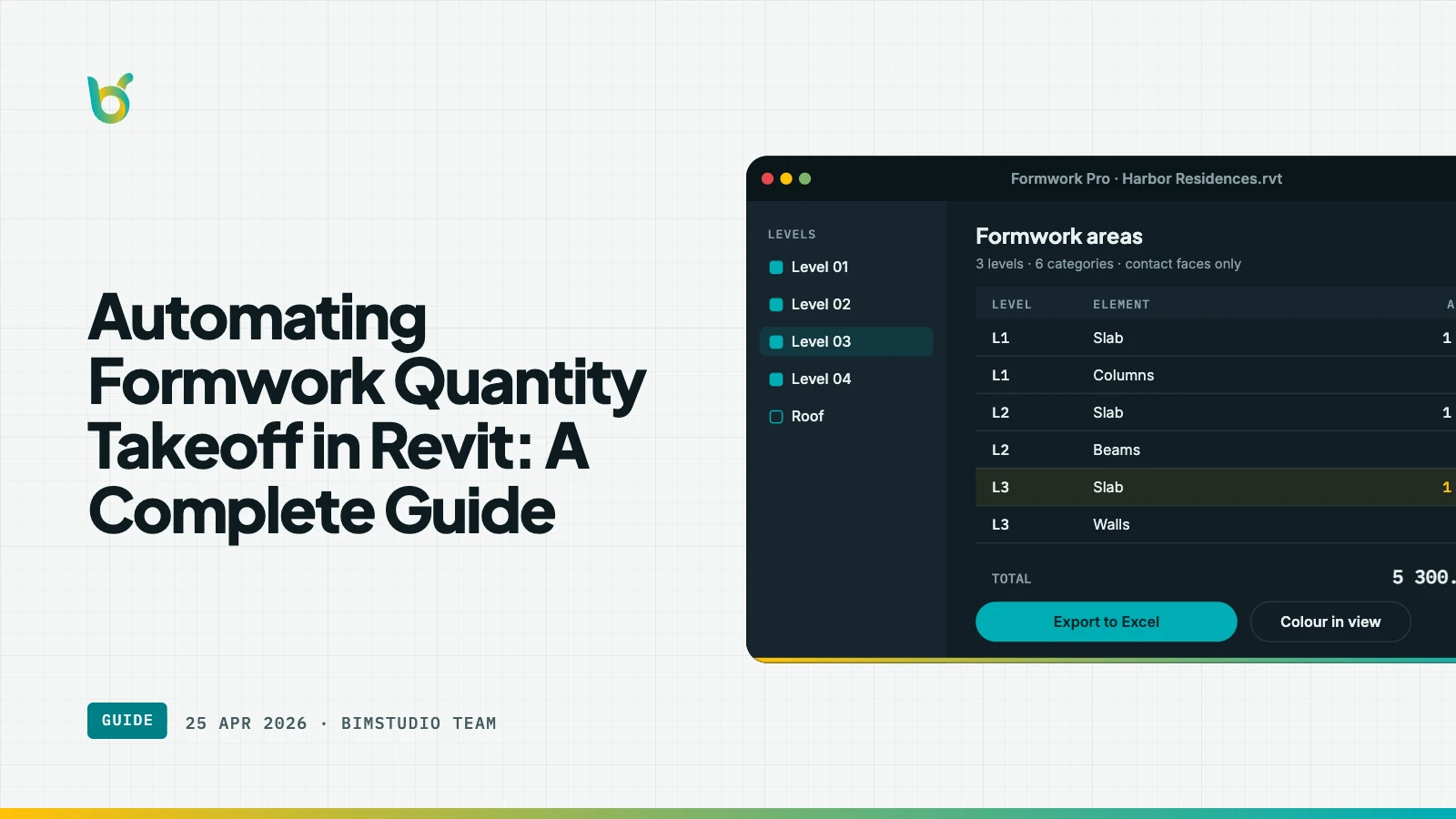
Formwork quantity takeoff is one of the most labor-intensive tasks in construction cost estimation. In a typical reinforced concrete building, formwork represents 30–40% of the structural cost — yet most BIM workflows still rely on manual area calculations derived from 2D drawings or tedious face-by-face measurements in the 3D model.
This guide explains why manual formwork QTO fails at scale, how Revit's built-in tools fall short, and how BIMStudio's Formwork plugin automates the entire process so your team can go from model to quantity report in minutes.
Why manual formwork QTO fails
Manual formwork quantity takeoff has three fundamental problems:
1. It is disconnected from the model
When a structural engineer updates a beam size or repositions a column, the 3D model changes immediately — but the formwork spreadsheet does not. Someone has to notice the change, find the affected elements, recalculate the areas, and update the spreadsheet. In a live design, this is a continuous source of errors.
2. Embedded faces are hard to identify
Concrete elements intersect each other. Where a beam frames into a column, part of the beam face is hidden inside the column and does not need formwork. Where a slab bears on a beam, the top face of the beam is covered by concrete, not by formwork panels. Manually identifying and subtracting these embedded faces is error-prone and often skipped.
3. It does not scale
A single-floor concrete structure might have 50 beams, 30 columns, and one slab. A multi-story building multiplies this by 10–20 floors. Manual QTO that takes 6 hours per floor becomes 60–120 hours across a building — and must be repeated if the design changes.
What Revit's built-in tools give you (and what they don't)
Revit stores surface area for each element, but this is the total external surface area — not the formwork contact area. The total area includes:
- Top faces of slabs (no formwork needed — concrete is poured on top)
- Faces embedded in adjacent elements (no formwork needed — no void to fill)
- Faces that touch the ground or existing structure
To get a formwork area from Revit's built-in parameters, you would need to manually subtract all of these excluded faces. There is no native Revit schedule field for "formwork area."
How the BIMStudio Formwork plugin solves this
The Formwork plugin adds a dedicated formwork calculation engine directly inside Revit. It analyzes the geometry of each structural element, detects which faces are embedded in adjacent elements, and computes the net formwork contact area. Results are written back to each element as a Revit parameter — so they appear in schedules, exports, and downstream tools.
Watch the plugin in action:
What the plugin processes
The plugin handles all standard structural concrete categories:
- Structural Columns — all exposed lateral faces, minus embedded regions
- Structural Framing (beams and braces) — soffit and side faces, minus embedded ends
- Floors (slabs) — soffit and edge faces, minus slab-to-beam contact zones
- Walls — both faces and edges, minus embedded intersections
Linked model support
The plugin works across Revit linked models without requiring you to bind them. This is important for federated BIM workflows where the structural model is linked into the coordination model — you can run the formwork QTO from the host model and get accurate results that span the link boundary.
Batch processing
The plugin processes all elements in the selected categories at once. There is no need to select elements individually. For large models with hundreds or thousands of concrete elements, batch processing makes the workflow practical.
Manual vs. automated formwork QTO: a comparison
| Aspect | Manual QTO | BIMStudio Formwork Plugin |
|---|---|---|
| Time per floor | 4–8 hours | 5–10 minutes |
| Accuracy | Estimator-dependent | Geometry-derived |
| Embedded face detection | Rarely done correctly | Automatic |
| Design change update | Full re-calculation | Re-run plugin |
| Data location | External spreadsheet | Revit parameter |
| Schedule integration | Manual copy-paste | Automatic |
| Linked model support | Requires merged model | Native support |
| Audit trail | None | Parameter history |
Integrating formwork QTO into your Revit workflow
Setting up the shared parameter
Before running the plugin, configure the custom parameter name in the plugin dialog. This should match the shared parameter your office uses for formwork area. If you are starting fresh, name it something descriptive like BIM_FormworkArea to distinguish it from Revit's native area parameters.
Scheduling formwork by level
After running the plugin, create a multi-category schedule that includes the formwork area parameter. Add the Level field as a grouping key. This gives you formwork quantities broken down by floor — the format most cost estimators need.
Exporting to Excel
Revit schedules can be exported to .txt or directly to Excel using Revit's Export > Reports > Schedule function. The formwork area column exports cleanly, giving you a spreadsheet that stays in sync with the model (you just re-run the plugin and re-export after design changes).
Comparing revisions
Because the plugin writes to element parameters, you can use Revit's revision-tracking features to compare formwork areas between design iterations. Create a snapshot schedule before a design change, run the plugin after, and compare the two schedules to quantify the impact on formwork quantities.
Accuracy considerations
Join Geometry before calculating
Revit's Join Geometry tool determines how elements intersect geometrically. The Formwork plugin uses join geometry to detect embedded faces. Run Join All on your structural model before processing to ensure all element intersections are correctly resolved.
Custom face exclusions
The plugin lets you configure which faces to include or exclude via the dialog. For elements with non-standard geometry — tapered beams, curved walls, angled columns — review the default face selection and adjust if needed.
Re-run on design changes
Formwork parameters are static after calculation. They do not auto-update when the model changes. Build a habit of re-running the plugin after each significant design revision, especially during construction documentation.
Who uses automated formwork QTO
- Quantity surveyors building BOQ (Bill of Quantities) documents from BIM models
- General contractors preparing formwork procurement and rental schedules
- Structural engineers providing formwork area estimates for budget control
- BIM managers establishing model-based QTO workflows for their teams
- Cost consultants validating contractor estimates against BIM-derived quantities
Keep reading
- How to Calculate Formwork Area in Revit | BIMStudio
- 5 Common Formwork Estimation Mistakes in Revit and How to Fix Them
- Formwork Plugin 2026: Custom Colors and Revit 2026 Support
Get started
The BIMStudio Formwork plugin is available on the Autodesk App Store at $10/month or $100/year.
Get Formwork on the Autodesk App Store
For questions about integrating the plugin into your QTO workflow, contact [email protected] or visit bimstudio.com.vn.