
How to View IFC Files Online: A Step-by-Step Tutorial
Learn how to load, explore, and analyze IFC building models directly in your browser with R3vozi — a free, browser-based IFC viewer with landscape generation, section box, and visibility controls.
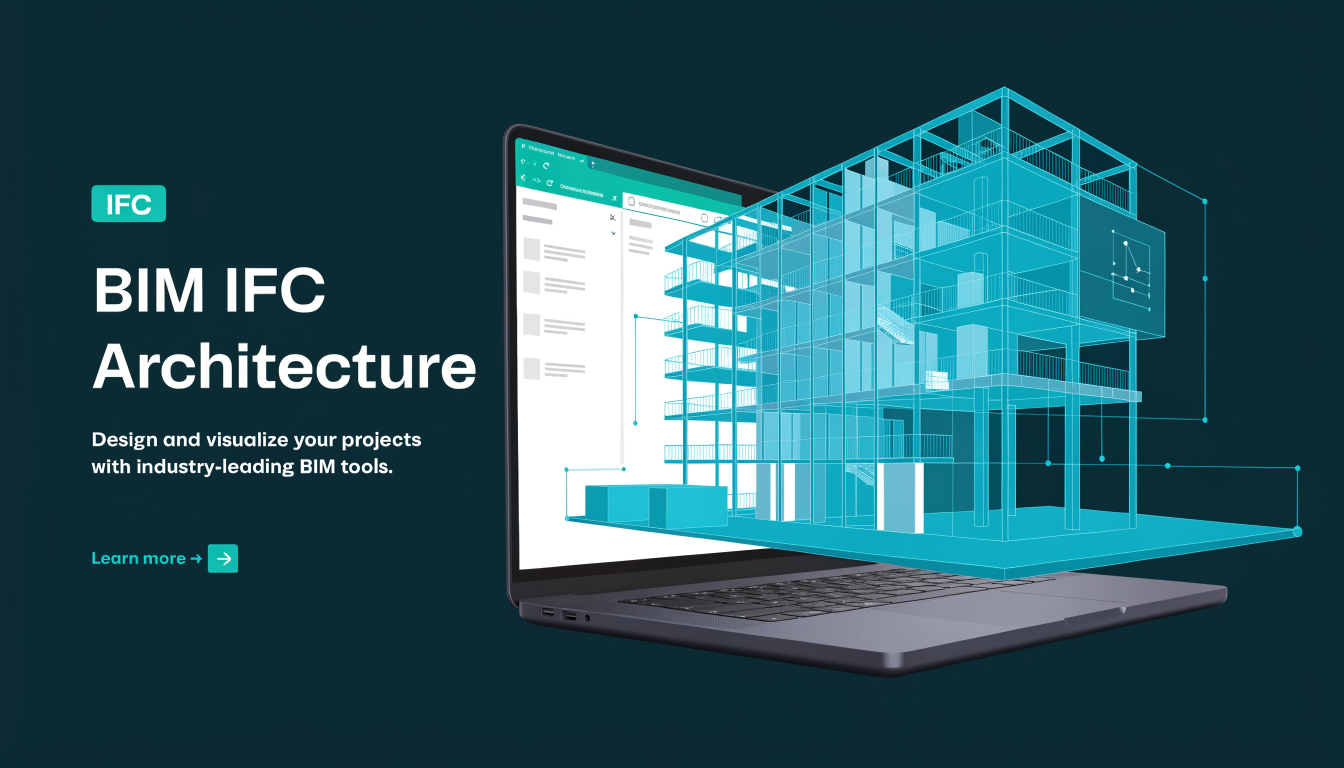
IFC (Industry Foundation Classes) is the open standard for exchanging building information models across software platforms. Whether you are an architect reviewing a structural model, an engineer checking MEP coordination, or a project manager verifying scope, you need a way to open IFC files without installing heavy desktop software.
R3vozi is a free, browser-based IFC viewer built by BIMStudio. It runs entirely in your browser — no downloads, no accounts, no cost. This tutorial walks through every step from loading your first IFC file to using advanced features like section box clipping and landscape generation.
Why view IFC files in the browser
Desktop IFC viewers require installation, often run only on Windows, and can be slow to load large models. Browser-based viewing solves these problems:
- No installation — open a URL and start working immediately on any device
- Cross-platform — works on Windows, macOS, Linux, and tablets
- Instant sharing — send a link to collaborators without asking them to install software
- Zero cost — R3vozi is completely free with no subscription or signup required
Getting started with R3vozi
Step 1: Open the viewer
Navigate to viewer.r3vozi.com in any modern browser (Chrome, Firefox, Edge, or Safari). The viewer loads instantly with an empty scene.
Step 2: Load your IFC file
Click the upload area or drag and drop your .ifc file directly into the viewer. R3vozi parses the IFC data entirely in the browser — your file is never uploaded to a server. This means your proprietary building data stays on your machine.
The viewer supports IFC2x3 and IFC4 files of any size that your browser can handle. For best performance with very large models (over 200 MB), use a device with at least 8 GB of RAM.
Step 3: Navigate the model
Once loaded, use these controls to explore your building model:
- Orbit — left-click and drag to rotate the view around the model
- Pan — right-click and drag (or middle-click and drag) to move the view laterally
- Zoom — scroll the mouse wheel to zoom in and out
- Fit to view — double-click on an element to center and zoom to it
Exploring R3vozi features
Landscape generation
One of R3vozi's unique features is automatic landscape generation. After loading your IFC model, R3vozi can generate surrounding terrain and environment context — trees, ground planes, and ambient scenery — so your building sits in a realistic setting rather than floating in empty space.
This is particularly useful for architectural presentations, client meetings, and design reviews where context matters. Instead of exporting your model to a separate rendering tool, you get an instant contextual view right in the browser.
Scene editor
The scene editor gives you real-time control over how your model is displayed:
- Camera settings — adjust field of view, near/far clipping planes, and projection type (perspective or orthographic)
- Lighting — change the direction, intensity, and color of scene lights to highlight different aspects of the model
- Scene properties — modify background color, ambient lighting, and shadow settings
These adjustments happen in real time, so you can experiment freely until you find the best view for your needs.
Section box
The interactive section box lets you clip the model to reveal interior views. This is essential for:
- Interior walkthroughs — clip away exterior walls to see room layouts and interior finishes
- Floor-by-floor review — isolate a single floor to check layout and coordination
- Detail inspection — clip to a specific area to examine connections, penetrations, or spatial relationships
Drag the section box handles to adjust the clipping planes in any direction. The section updates in real time as you drag, giving immediate visual feedback.
Visibility controls
R3vozi organizes model elements by IFC category (walls, slabs, columns, beams, doors, windows, and more). The visibility panel lets you:
- Toggle categories on and off — hide all walls to see the structural frame, or hide MEP elements to focus on architecture
- Isolate specific categories — show only columns and beams for a structural review
- Combine toggles — create custom views by showing exactly the combination of categories you need
This category-based filtering is faster than selecting individual elements and gives you immediate analytical views of your model.
Practical use cases
Design review
Load a model from your architect or structural engineer, generate landscape context, and review the design in a realistic setting. Use the section box to check interior layouts without switching tools.
Coordination check
Toggle visibility by category to quickly identify spatial conflicts. Show only MEP and structural elements together to spot clashes between ductwork and beams.
Client presentation
Share the viewer URL with your client — they can open it on any device without installing software. The landscape generation feature provides visual context that helps non-technical stakeholders understand the design.
Field verification
Open IFC models on a tablet at the construction site. Compare as-built conditions against the model using section box clipping to isolate the area you are inspecting.
Related articles
- Best IFC Viewer Comparison 2026: R3vozi vs Desktop and Cloud Solutions
- R3vozi IFC Viewer Features: A Complete Guide
- Learn more about R3vozi
Ready to try it? Open R3vozi Viewer — free, no signup required.