
- Revit
- Formwork
- Schedules
- Quantity Takeoff
- Construction Planning
How to Create Formwork Schedules in Revit by Level and Zone
Build organized formwork schedules in Revit grouped by level, zone, and element type. Learn how to turn automated formwork data into actionable procurement and site planning documents.
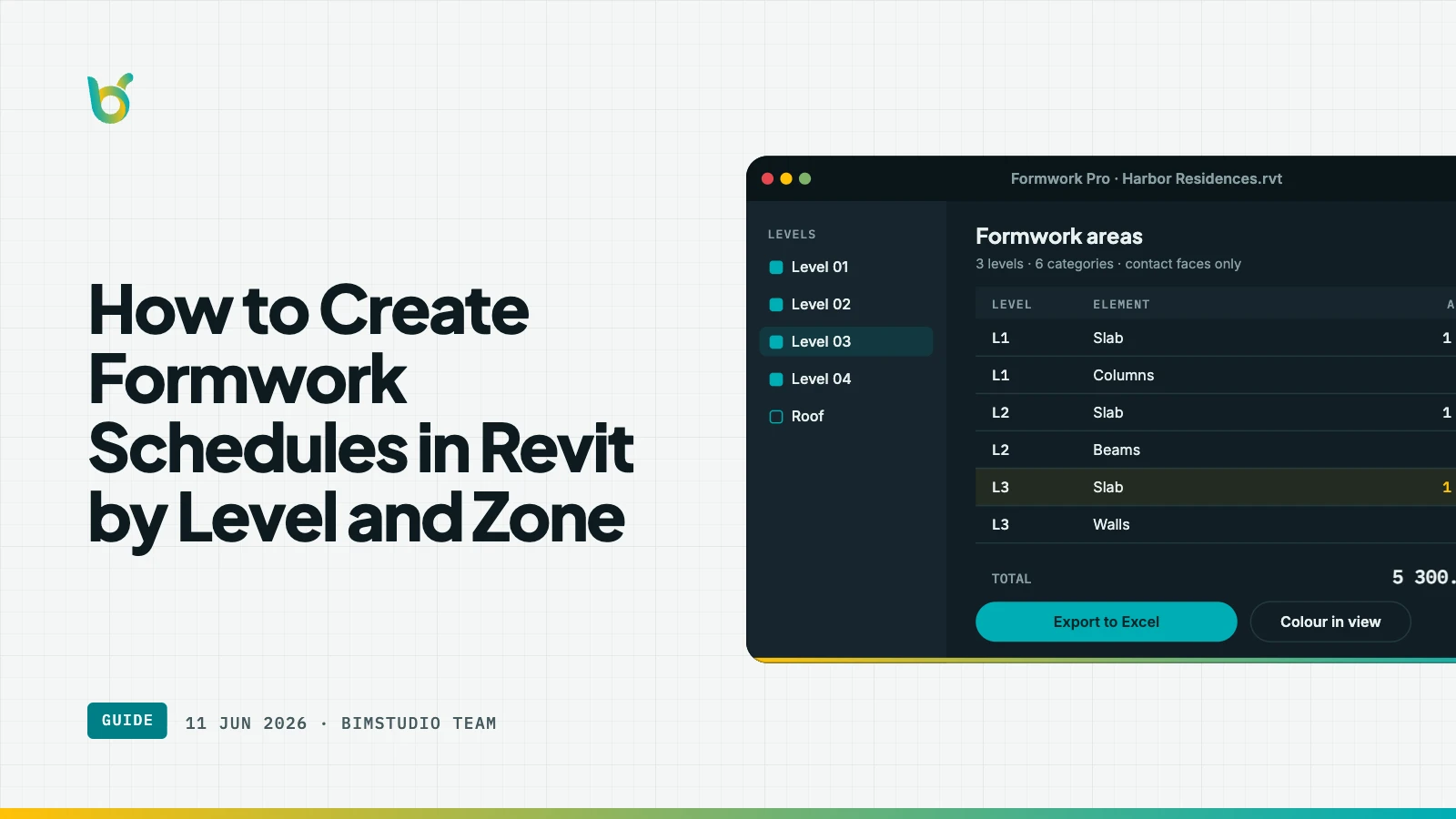
Knowing the total formwork area for a building is useful for budget estimates. Knowing the formwork area per level, per zone, and per element type is what actually drives construction planning. Procurement needs quantities by delivery phase. The site team needs to know how much formwork to mobilize per floor. The formwork subcontractor needs element-level detail to plan panel layouts and reuse cycles.
Revit's scheduling tools can deliver all of this — but only if the underlying formwork data is accurate and stored in model parameters. This article walks through how to build formwork schedules that organize data by level and zone, and how BIMStudio's Formwork plugin provides the accurate parameter data that makes these schedules meaningful.
Why level-based formwork schedules matter
Construction does not happen all at once. A 15-story building is cast floor by floor, and formwork is typically rented and cycled between levels. The project manager needs to answer specific questions:
- How much formwork area is on Level 3? This determines the formwork set size for the first pour cycle.
- Is the formwork area consistent across typical floors? If floors 4–12 are identical, one set can be reused without modification.
- Which level has the most formwork? The peak level determines the minimum rental quantity.
- How does formwork distribute between beams, columns, slabs, and walls on each level? Different element types use different formwork systems — panel formwork for walls, table formwork for slabs, beam formwork for beams.
A single total number cannot answer any of these questions. A schedule grouped by level answers all of them.
Step 1: Generate accurate formwork data
Before building a schedule, you need formwork area values on each element. Revit's built-in "Surface Area" parameter includes all faces — including faces that do not need formwork (top of slab, embedded beam ends, etc.). Using this parameter directly leads to inflated schedules.
The BIMStudio Formwork plugin calculates net formwork area — excluding embedded faces and non-formwork surfaces — and writes the result to a Revit parameter on each element. This gives you a schedulable, per-element formwork area that reflects actual site requirements.
Run the plugin across all structural categories before building your schedule. The formwork parameter will appear on every processed element.
Step 2: Create a multi-category schedule
Formwork spans multiple Revit categories — Structural Framing (beams), Structural Columns, Floors, and Walls. To see all formwork in one schedule, create a Multi-Category Schedule:
- Go to View → Schedules → Schedule/Quantities
- Select Multi-Category from the category list
- Add these fields:
- Family and Type — identifies the element
- Level — groups by floor
- Category — distinguishes beams from columns from slabs
- The formwork area parameter created by the plugin (default name: "Formwork Area")
Step 3: Group by level
In the schedule's Sorting/Grouping tab:
- Sort by Level (ascending)
- Check Header and Footer for the Level group
- In the footer, set the formwork area column to show Grand Total
- Add a secondary sort by Category within each level
This produces a schedule where each level header shows the floor name, elements are grouped by category within each level, and the level footer shows the total formwork area for that floor.
Step 4: Add zone grouping
For large floor plates, a single per-level total may not be granular enough. Construction zones — defined by pour sequence — determine when specific areas need formwork.
To add zone grouping:
- Create a shared parameter called "Construction Zone" (or similar)
- Assign zones to elements using Revit's selection tools or a parameter mapping plugin
- In the schedule, add "Construction Zone" as a grouping level between Level and Category
The schedule now shows: Level → Zone → Category → Elements, with subtotals at each grouping level. This directly maps to the site team's pour schedule.
Step 5: Export for procurement
The completed schedule can be exported to Excel for further processing:
- File → Export → Reports → Schedule to export as .txt
- Or use BIMStudio's Export to Excel plugin for direct .xlsx export with formatting preserved
The procurement team receives a clean spreadsheet with formwork area broken down by level and zone — ready for rental quantity calculations and delivery scheduling.
Example: 10-story office building
Here is what a well-structured formwork schedule looks like for a typical project:
| Level | Beams (m²) | Columns (m²) | Slabs (m²) | Walls (m²) | Total (m²) |
|---|---|---|---|---|---|
| Foundation | 45 | 120 | 0 | 280 | 445 |
| Level 1 | 380 | 160 | 420 | 85 | 1,045 |
| Level 2 | 365 | 160 | 420 | 85 | 1,030 |
| Levels 3–8 (typical) | 365 × 6 | 160 × 6 | 420 × 6 | 85 × 6 | 6,180 |
| Level 9 | 340 | 140 | 400 | 60 | 940 |
| Roof | 120 | 0 | 380 | 0 | 500 |
| Total | 10,140 |
From this schedule, the project manager can immediately see:
- Peak formwork level: Level 1 at 1,045 m²
- Typical floor set: ~1,030 m² with consistent distribution
- Formwork reuse potential: 6 identical typical floors allow a single set to cycle 6 times
- System requirements: Slabs dominate the area (41%), followed by beams (37%), requiring table and beam formwork systems respectively
Keeping schedules current
The value of a formwork schedule depends on it reflecting the current model. When the structural design changes:
- Re-run the Formwork plugin (takes 1–3 minutes per floor)
- The schedule updates automatically — no manual editing required
- Export the updated schedule for procurement revision
Teams that include "re-run Formwork plugin" in their design change checklist ensure their schedules never drift from the model.
Keep reading
- How to Calculate Formwork Area in Revit | BIMStudio
- Automating Formwork Quantity Takeoff in Revit: A Complete Guide
- Formwork Area vs Surface Area in Revit: What Every Engineer Gets Wrong
Get started
The BIMStudio Formwork plugin is available on the Autodesk App Store at $10/month or $100/year.
Get Formwork on the Autodesk App Store
Need help setting up formwork schedules for your project? Contact the BIMStudio team at [email protected] or visit bimstudio.com.vn.